Contents
The Playbun gallery is where most people start, and for good reason. Before you upload anything, you can see what a template does: how the camera moves, how much the subject moves, how light behaves and how a still frame turns into a few seconds of motion. It is the closest thing to a test drive.
A gallery also makes it easy to scroll, pick whatever looks best, and then be disappointed when your own photo does not behave the same way. This guide is about avoiding that. It walks through what the Playbun gallery is, how to browse it with a purpose, how to read the different styles, and how to turn a look you like into an Adults 18+ AI video that comes from your own photo. If you just want the previews, head straight to the Playbun gallery page. If you want to get more out of them, read on.
What the Playbun gallery actually is
Playbun is an Adults 18+ AI video generator for playful template-based character motion. You provide one still image, choose a template, and the template decides the motion: the camera path, how far the subject moves, and how much of the frame is allowed to change. The Playbun gallery is the visual menu of those templates.
Every gallery item is really three things at once:
- A look: the mood, outfit style, setting and lighting that make the preview attractive.
- A motion pattern: what actually happens over time, such as a slow push-in, a head turn, a sway or a walk.
- A set of requirements: the crop, pose and lighting the template expects from your source photo.
Most people only notice the first. The second and third decide whether your result works. Our guide to reading a template preview covers this in more detail; this article applies it to browsing the whole gallery.
Twelve example looks from the gallery
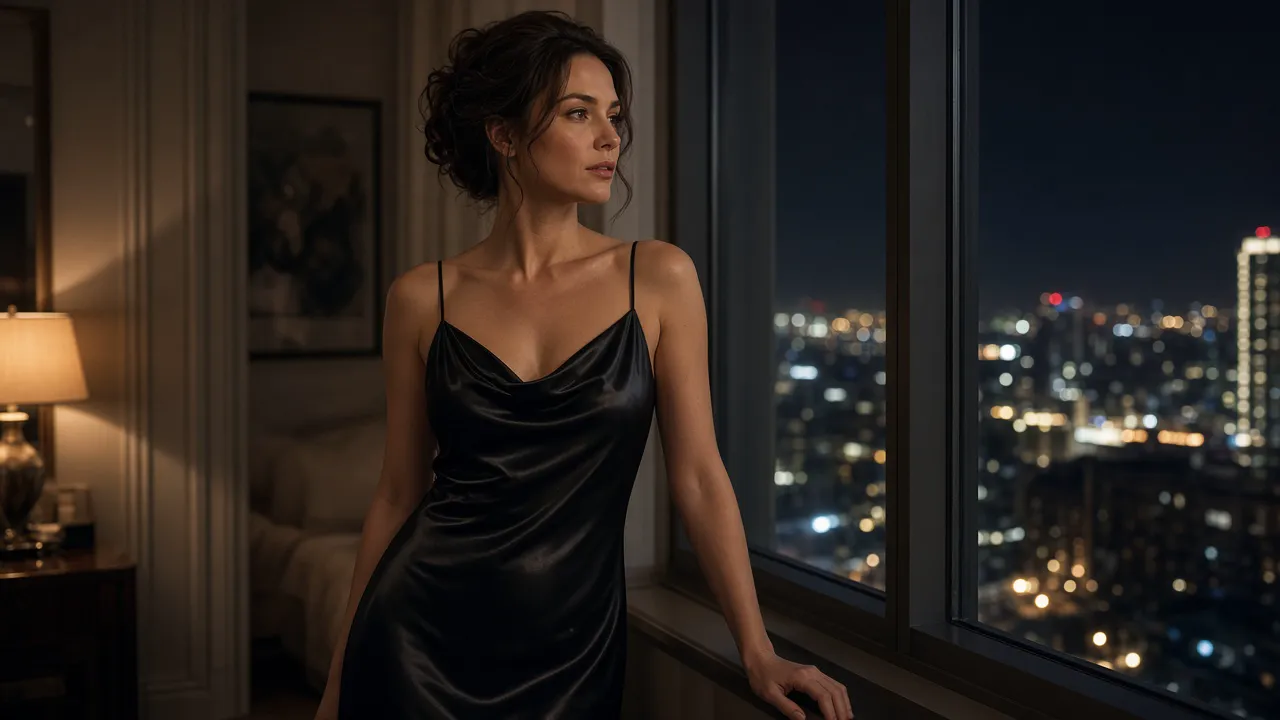
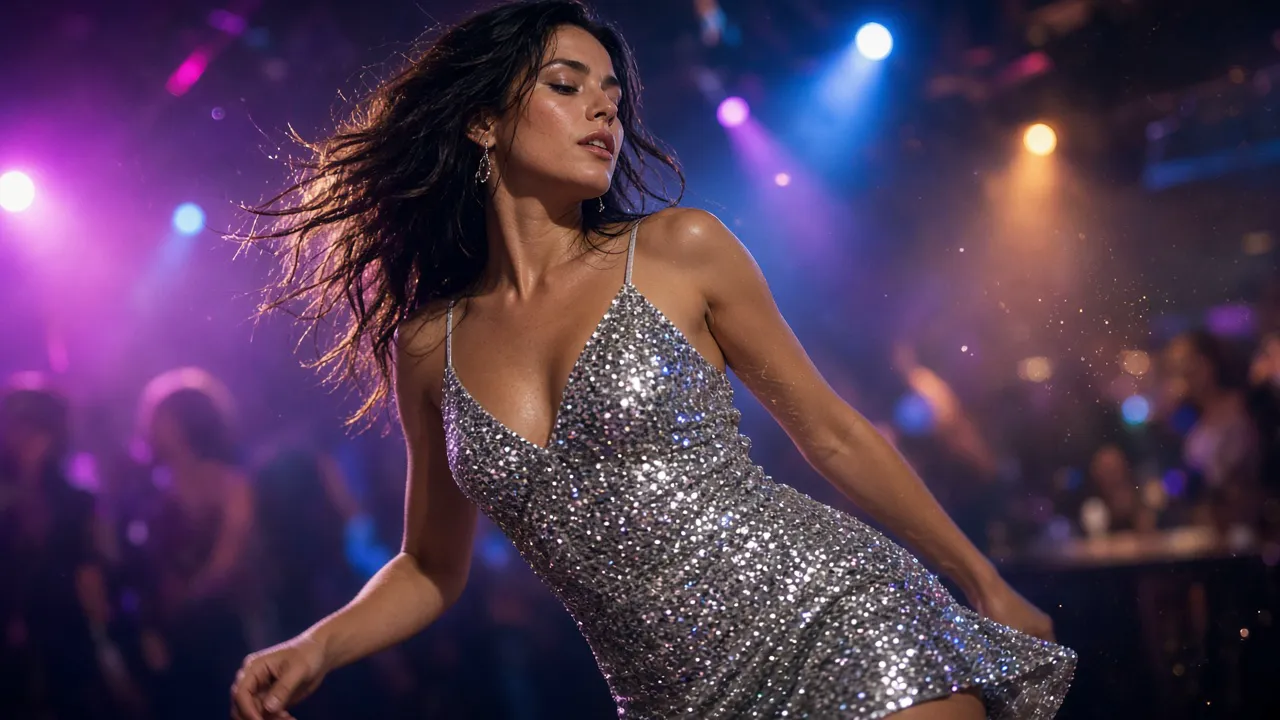
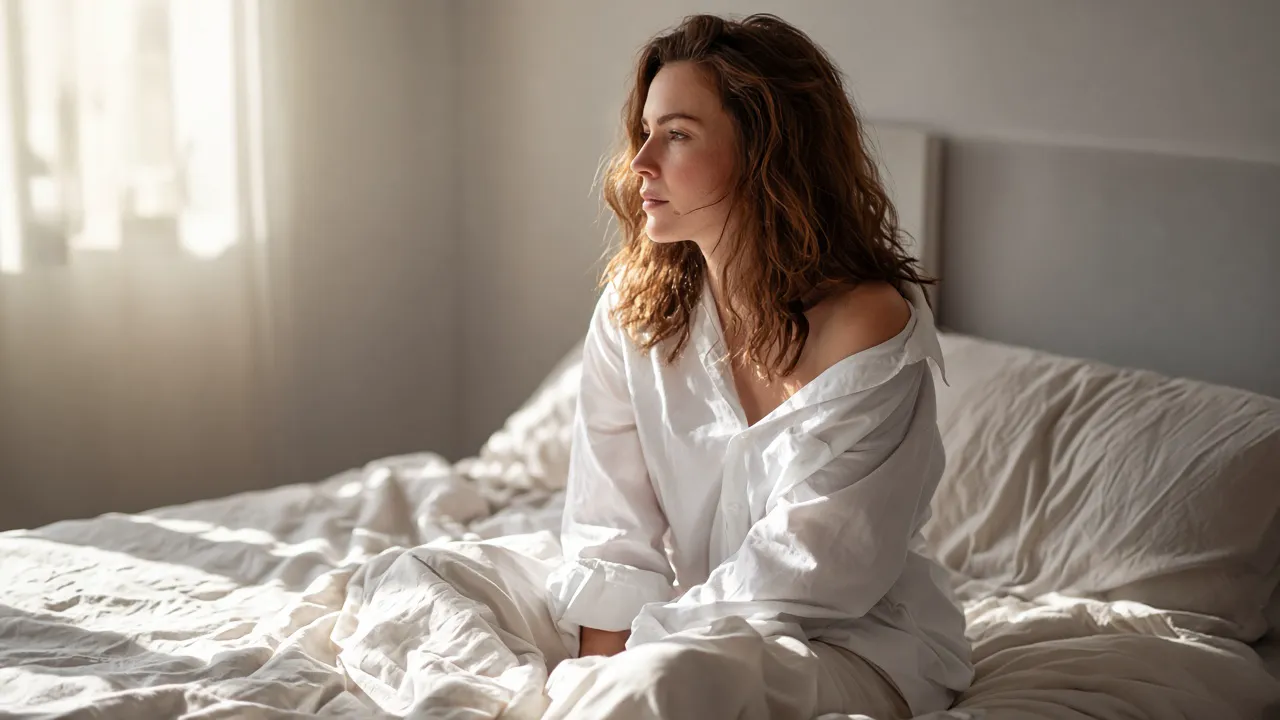
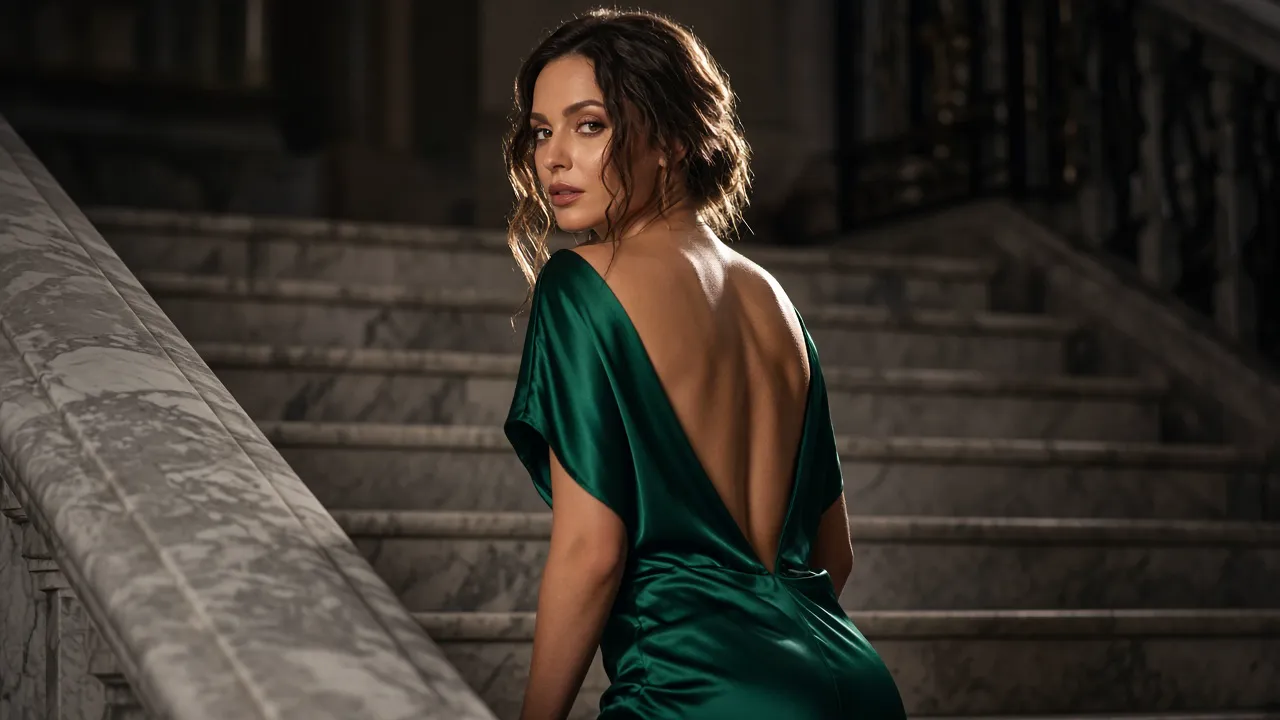
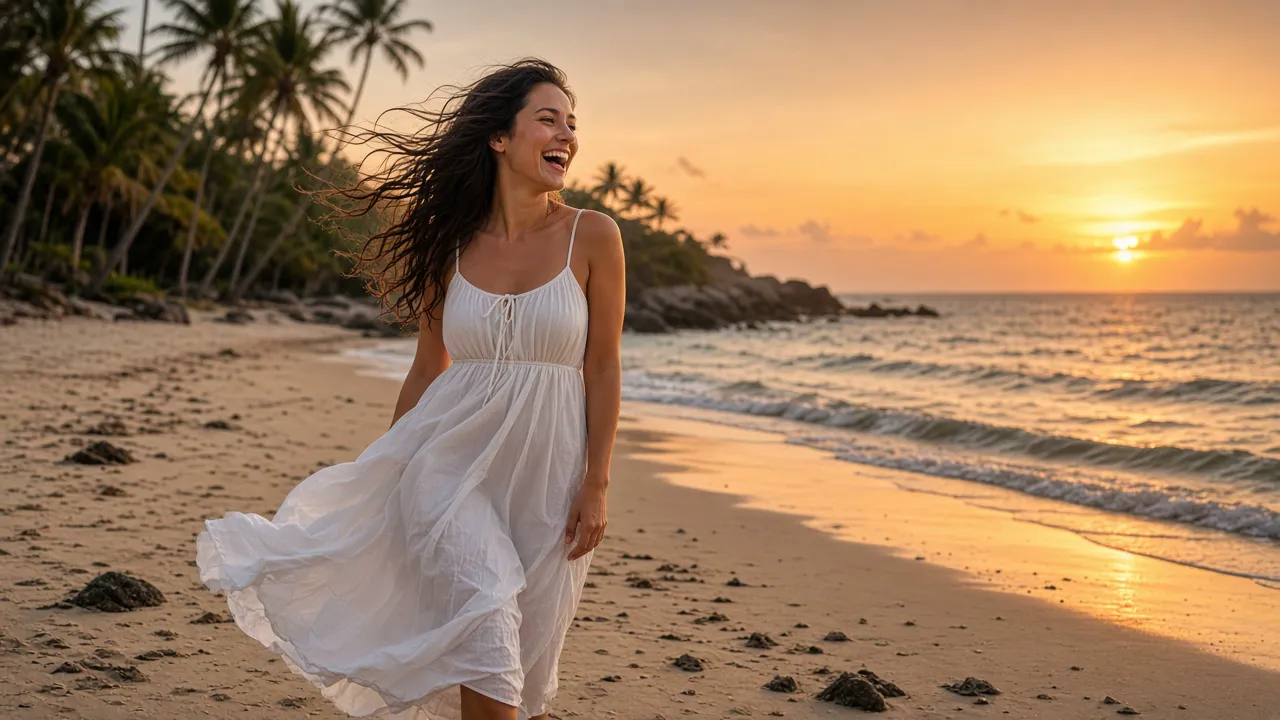
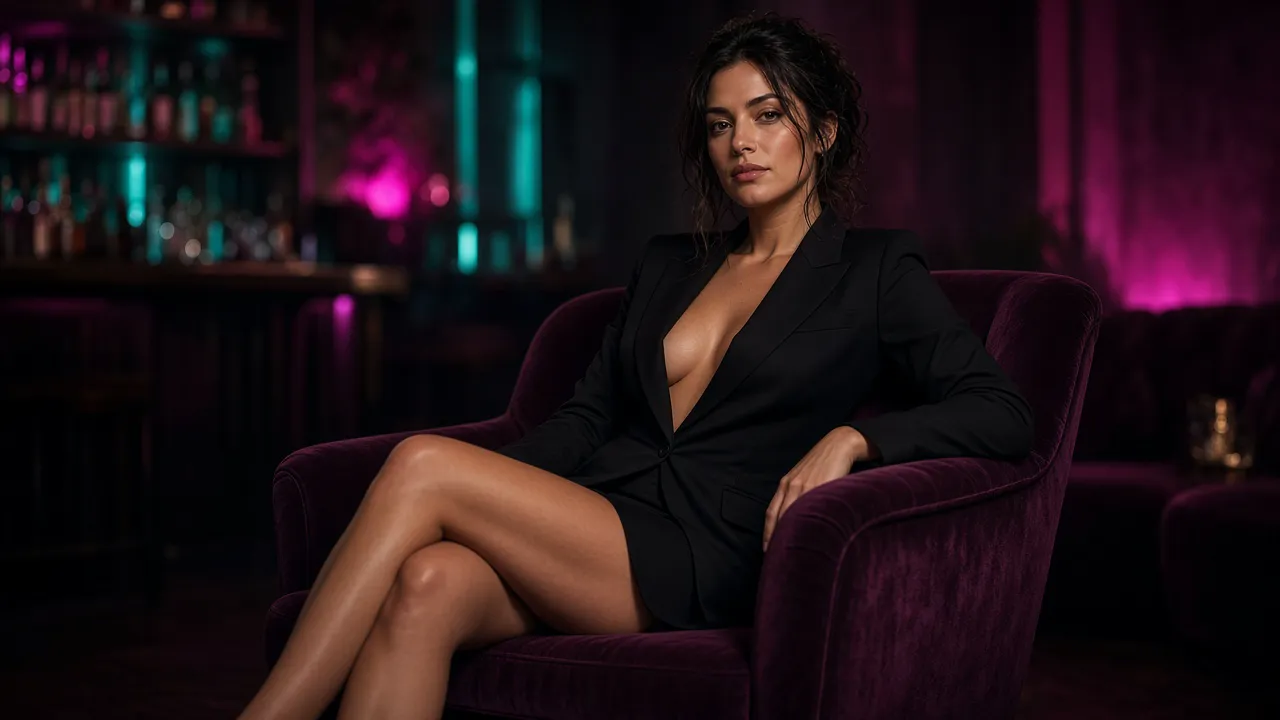
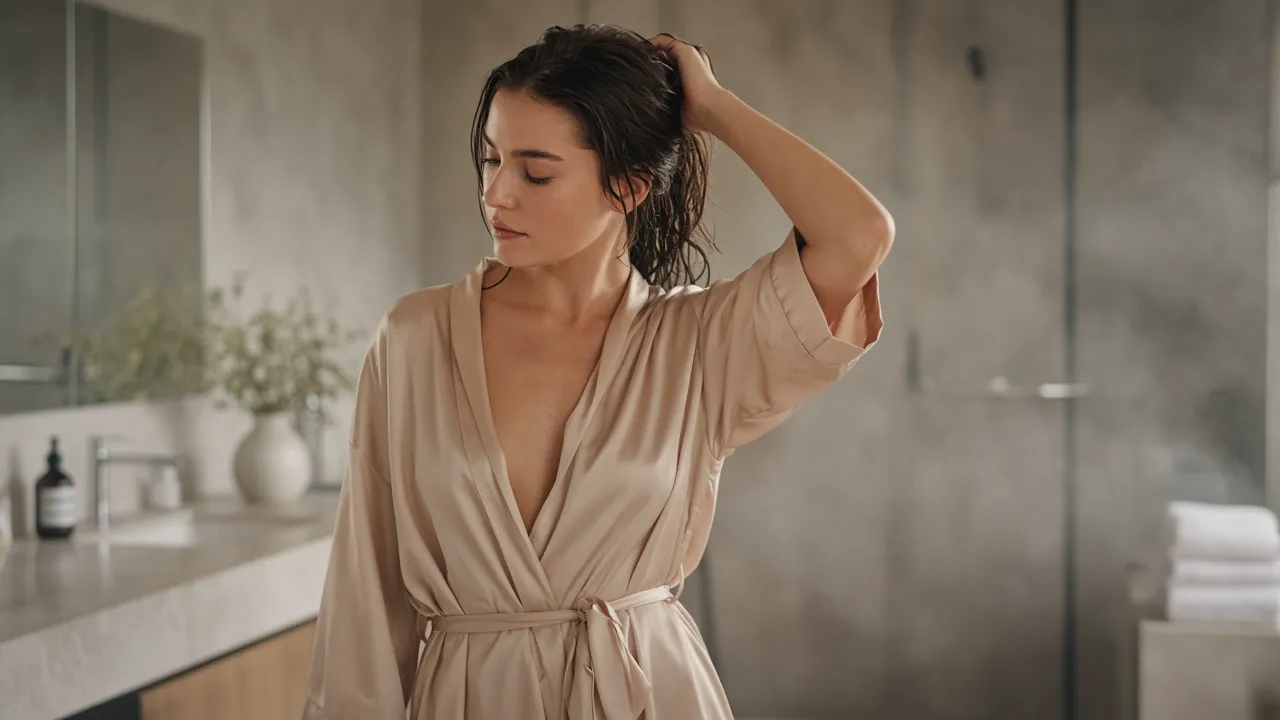
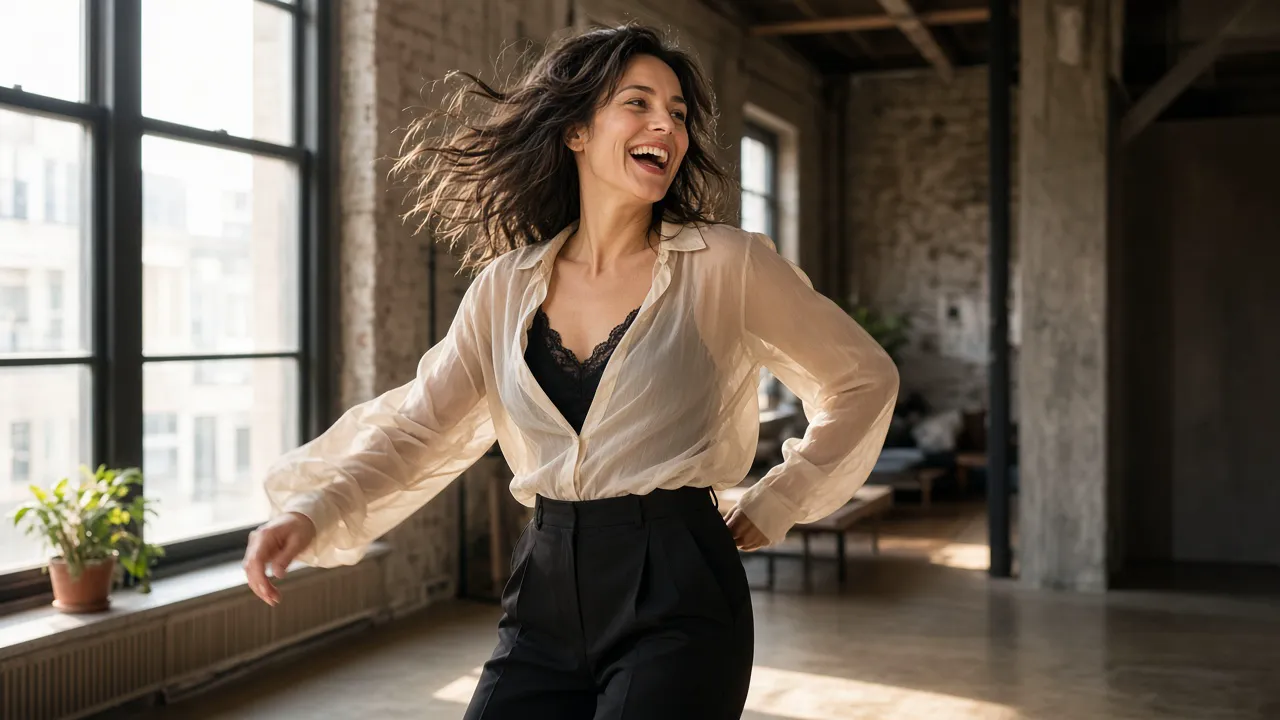
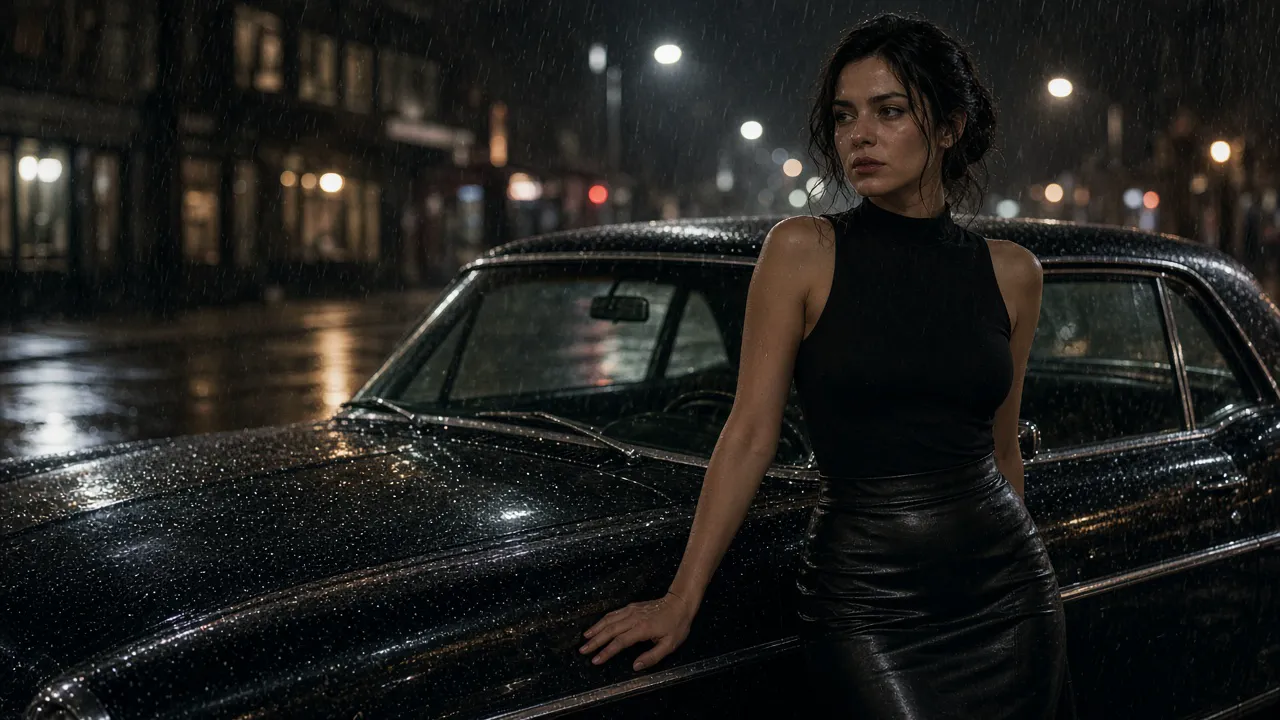
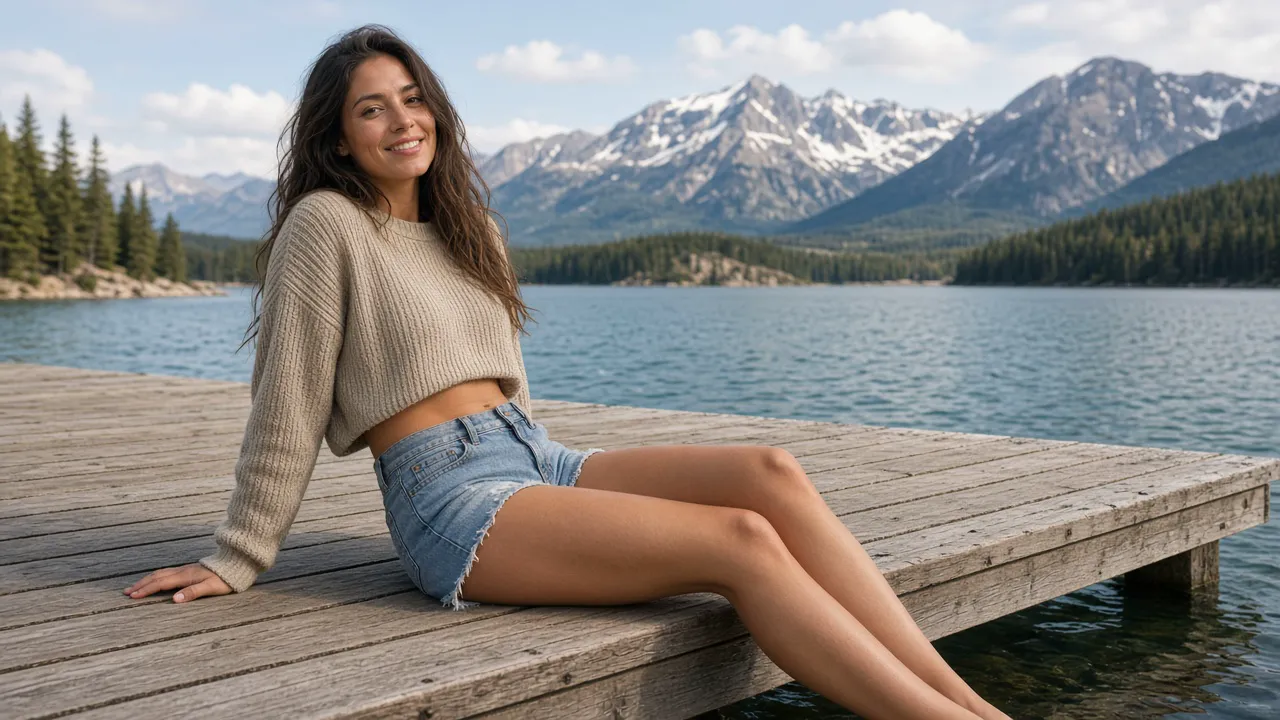
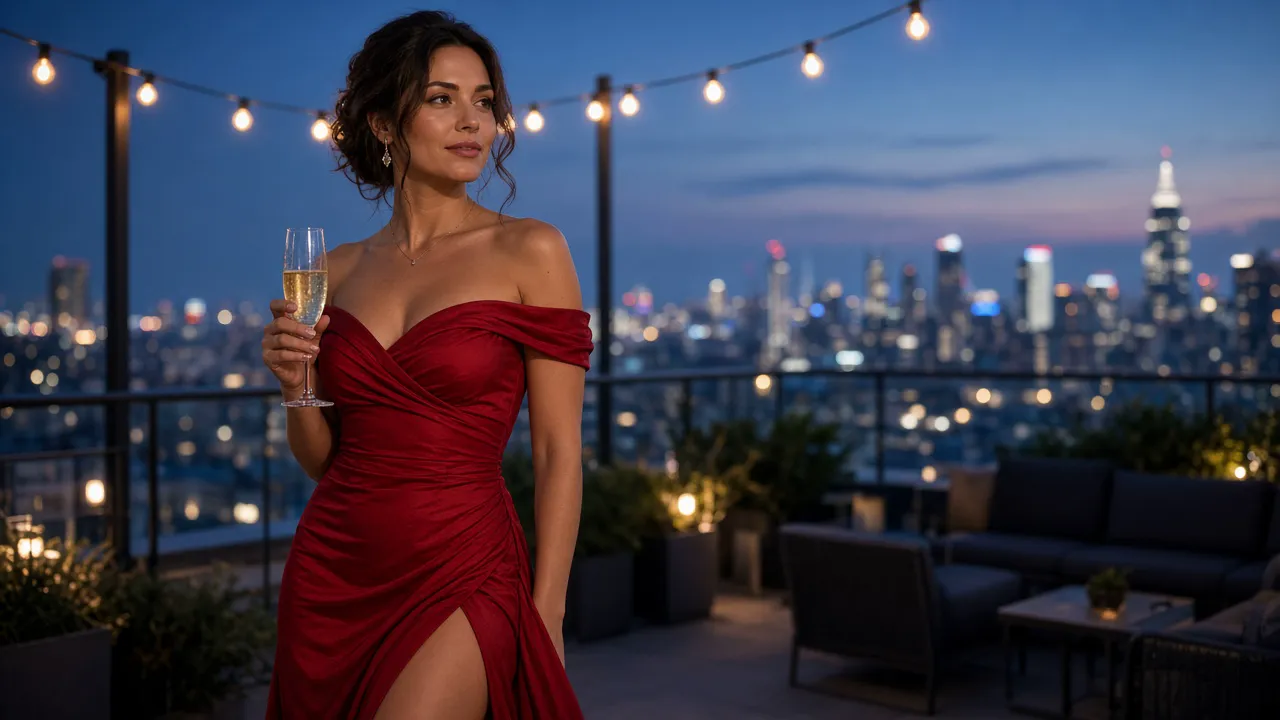
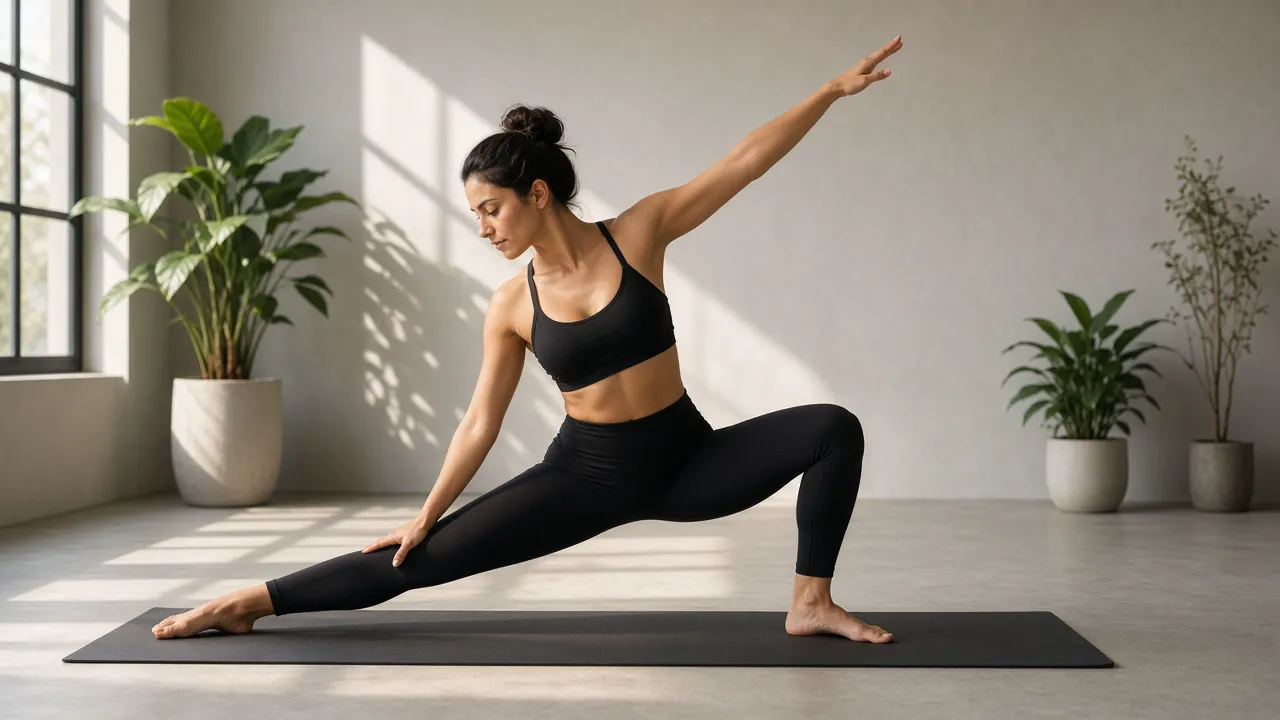
To make the ideas below concrete, here are twelve example looks of the kind you will find while browsing the Playbun gallery. They range from quiet, intimate scenes to high-energy nightlife and travel moods. Under each one is the note we would write while browsing: the light, the expected motion and what kind of source photo suits it.
Read the grid in pairs. The night window and the velvet lounge are both low-light, evening scenes, but one is standing and one is seated, so they suit very different photos. The dance floor and the loft dance both move a lot, but one relies on coloured club light and the other on plain daylight. Comparing near-neighbours like this teaches you far more than staring at a single favourite.
How to browse the Playbun gallery
A good browsing session takes a few minutes and ends with a shortlist of two or three looks, not one. Here is a simple routine.
1. Start from the photo you already have
Open the photo you plan to use before you open the gallery. Note three things: the crop (head and shoulders, half body or full body), which way the subject faces, and the light (soft and even, or hard and directional). These three notes filter the Playbun gallery faster than any category menu.
2. Watch each preview at least twice
The first viewing is for mood. The second is for mechanics: is the camera locked or moving, does the subject turn, does hair or fabric move, does the background stay put? A preview that looks calm at first glance sometimes hides a large camera move that a busy background will not survive.
3. Shortlist by compatibility, then by taste
Remove anything that conflicts with your photo's crop or pose first. Only then pick the one you like most. Doing it the other way round is the most common reason people burn credits on a beautiful template that never had a chance with their image.
Styles and categories worth knowing
The Playbun gallery groups templates into families. Names change, but the families tend to fall into a few recognisable styles. The template categories guide goes deeper; here is the short version, mapped to the looks above.
- Idle and ambient motion: breathing, blinking, a slight sway or a small head turn. Think of the morning light or silk robe looks. These are the most forgiving and the best place to start with a new photo.
- Camera-led looks: the subject barely moves while the camera pushes in, pulls back or drifts. The night window and rooftop evening looks fit here. They need a sharp image with clean edges.
- Pose and turn looks: an over-the-shoulder glance, a seated shift, a lean. The staircase and rainy noir looks are typical. They need the subject already facing roughly the right direction.
- High-energy movement: dancing, walking, hair and fabric in motion. The dance floor, loft dance and beach looks belong here. They are the most eye-catching and the most demanding.
- Mood and setting looks: the outfit and environment are the point, such as a velvet lounge, a lake pier or a bright studio. The motion is usually modest, which makes them reliable.
Higher-energy families look best in a preview and fail most often on real photos. If you are unsure, start one family calmer than you think you need. Our motion intensity guide explains why.
How to pick a look as your reference
Once you have a shortlist, choose the reference with a short checklist. Each answer should be "yes" or "close enough".
- Crop match: does the preview frame the subject the same way your photo does? A full-body walk cannot be invented from a tight portrait without the model making up most of the body and the scene.
- Direction match: if the preview turns the head to the left, is your subject already facing slightly left or straight ahead? Turning against the pose usually distorts the face.
- Space for motion: is there room in your frame for the movement? A sway needs a little margin on both sides; a walk needs a lot.
- Light match: do the light direction and softness roughly agree? A backlit golden-hour look applied to a flat, flash-lit indoor photo will look pasted together.
- Background tolerance: busy backgrounds such as shelves, patterned walls or crowds are fine with a locked camera and risky with a moving one.
The look that passes the most checks is your reference, even if it is your second favourite. The source-to-template matching guide has a printable version of this list.
Turning your own photo into a similar video
With a reference picked, the generation itself is quick. The preparation is what makes the clip look like the gallery look instead of a rough copy.
Prepare the source image
Use a sharp, well-exposed photo at the highest resolution you have. Crop it to match the reference framing, keeping the head fully in frame and leaving space in the direction of movement. Avoid heavy filters, strong beauty smoothing and extreme wide-angle distortion, as they confuse the motion model.
Match the mood, not just the pose
If the gallery look is warm and golden, a photo taken in warm light will carry that mood into the clip. If your photo is cool and even, pick a look with similar light rather than hoping the template will relight the scene. Outfit style matters too: flowing fabric animates beautifully in walking and dancing looks, while structured clothing suits calmer, pose-led looks.
Generate, then review like an editor
Watch the result three times. First for the face: does it stay consistent? Then for the edges: do hair, hands and clothing hold together? Then for the background: does it stay stable where it should? Note one problem, fix one variable, and try again. Changing the photo, the crop and the template all at once tells you nothing about what worked.
Know when to switch looks
If the same artefact appears three times in a row, the pairing is wrong. Step down to a calmer look from the same mood, such as moving from the dance floor to the velvet lounge, or choose a photo whose crop and pose fit better.
Tips that save credits
- Browse with a photo in mind. Browsing the Playbun gallery without a source photo is window shopping. It is fun, but it does not tell you which look will work for you.
- Prefer calm looks for first attempts. Idle, camera-led and mood looks give you a usable clip more often, and you learn how your photo behaves.
- Keep a short notes file. Write down which look, which photo and what went wrong. After a few sessions you will know your own best-performing families.
- Simplify the background. A plain wall or soft-focus background lets bigger motion work. If the background is busy, crop tighter or choose a locked-camera look.
- Do not judge by run counts alone. A popular look is often popular because it is easy to match, not because it is the best fit for your image.
- Respect consent. Only use photos of yourself or of adults who have clearly agreed. Playbun is an Adults 18+ product.
FAQ
What is the Playbun gallery?
It is a browsable set of template previews that shows how Playbun turns a single still photo into a short Adults 18+ AI video. Each preview demonstrates a crop, a pose, a lighting setup and a motion pattern you can reuse with your own image.
Is this the same as the /gallery/ page?
No. The Playbun gallery page collects the live template previews. This guide explains how to browse them, using twelve example looks to show what to compare before you generate.
Do I need a photo that looks exactly like the preview?
No, but it should share the important basics: similar framing, a compatible pose direction, enough space around the subject for the motion, and light that is not wildly different.
Why does my result look different from the gallery look?
Your source decides most of the outcome. Lighting, crop, background detail and pose all carry into the clip, so treat a gallery preview as a specification rather than a promise.
How many attempts should I give one look?
Three is a sensible limit. If the same flaw shows up three times, switch to a calmer look or a better-matched photo rather than rerolling the same pairing.
Who can use Playbun?
Playbun is for adults 18+ only. Only upload photos of yourself or of adults who have clearly agreed to it.
When you are ready, open the Playbun gallery, shortlist two or three looks that fit your photo, and generate the one that passes the most checks.