
Contents
- Read the motion instead of the demonstration image
- Match the crop to the template’s movement
- Check pose and subject orientation
- Inspect light, hair, clothing, and background edges
- Use the controls and prompt to support the match
- Review the clip and change one variable per retry Updated October 12, 2026
A polished template preview can make an Adults 18+ AI video workflow look automatic. The harder question comes before generation: can your source image support the movement shown in that preview?
Playbun answers this as a catalogue-first editorial guide to template-based adult AI video generators. It is not the generator reached through links on its pages. The publication’s privacy page confirms that it has no generator, upload endpoint, account system, or payment flow. Its useful role is helping adults assess template families and avoid spending credits on an obviously incompatible source-and-motion pairing.
A preview is a favorable demonstration, not a promise. Its carefully selected subject, clean lighting, precise crop, and simple setting may contribute as much to its appeal as the underlying motion. Before choosing a template by mood, determine what that motion would demand from your own image.
Read the motion instead of the demonstration image
Start by separating what already exists in the demonstration image from what the template introduces. Watch the preview several times, concentrating on one layer during each pass:
- Camera behavior: Is the frame locked, pushing inward, panning, or orbiting?
- Subject motion: Does the subject blink, turn their head, rotate their torso, change pose, or travel through the frame?
- Motion magnitude: Does the sequence preserve the starting geometry, or reveal body surfaces absent from the first frame?
- Environmental movement: Do hair, fabric, shadows, furniture, or background patterns move as well?
Playbun’s guide to reading a template preview identifies locked, pushing, and orbiting cameras as observable signals likely to carry into the result. These signals are more useful than the preview’s styling or general appeal.
Mentally strip away the model, wardrobe, and set. If the sequence is still recognizable as a slow push-in, small head turn, or breathing loop, you have isolated its motion pattern. If most of the appeal vanishes, the demonstration is relying heavily on its source image rather than showing a distinctive or broadly compatible movement.
This separation also reflects broader image-to-video practice. Google Cloud recommends starting with a sharp, well-composed image and treating camera, subject, and environmental movement as distinct parts of a video request. Use them as separate compatibility checks rather than combining them into one vague impression.
Match the crop to the template’s movement
Playbun’s source-to-template matching guide identifies compatibility with the source—not template choice alone—as a major determinant of output quality.
Begin with the crop. A head-and-shoulders portrait naturally supports blinking, breathing, a slight head turn, or modest camera movement because little missing anatomy must be constructed. Half-body sources can support pose changes, but hands should be completely visible or completely outside the frame. A crop through fingers, wrists, or elbows places an uncertain boundary exactly where movement is expected.
Full-body images present different constraints. More limbs and clothing edges may move, yet each detail occupies fewer pixels. When those details are already small, a restrained camera move is a more defensible match than a large pose change.
The three Playbun guides visible during the October 12, 2026 site inspection divide this decision neatly: read the preview, identify the template family, and then match the source. Their advice becomes concrete when the cases are compared. Low-motion portrait actions suit a head-and-shoulders image, while a half-body turn calls for complete hand framing. The deciding factor is motion demand, not promotional mood.
| Preview demand | Evidence needed in the source | Warning sign |
|---|---|---|
| Subtle portrait motion | Clear face, stable hairline, visible neck and shoulders | Blur, heavy occlusion, extreme head angle |
| Torso turn | Three-quarter pose, clean outline, adequate side space | Frontal crop hiding the far side |
| Camera push | Sharp facial detail and room for a closer crop | Soft focus or an already tight crop |
| Pan or orbit | Background separation and space around the subject | Subject touching an edge or detailed clutter |
| Pose change | Complete hands and joints involved in the movement | Fingers, wrists, or elbows cut by the frame |
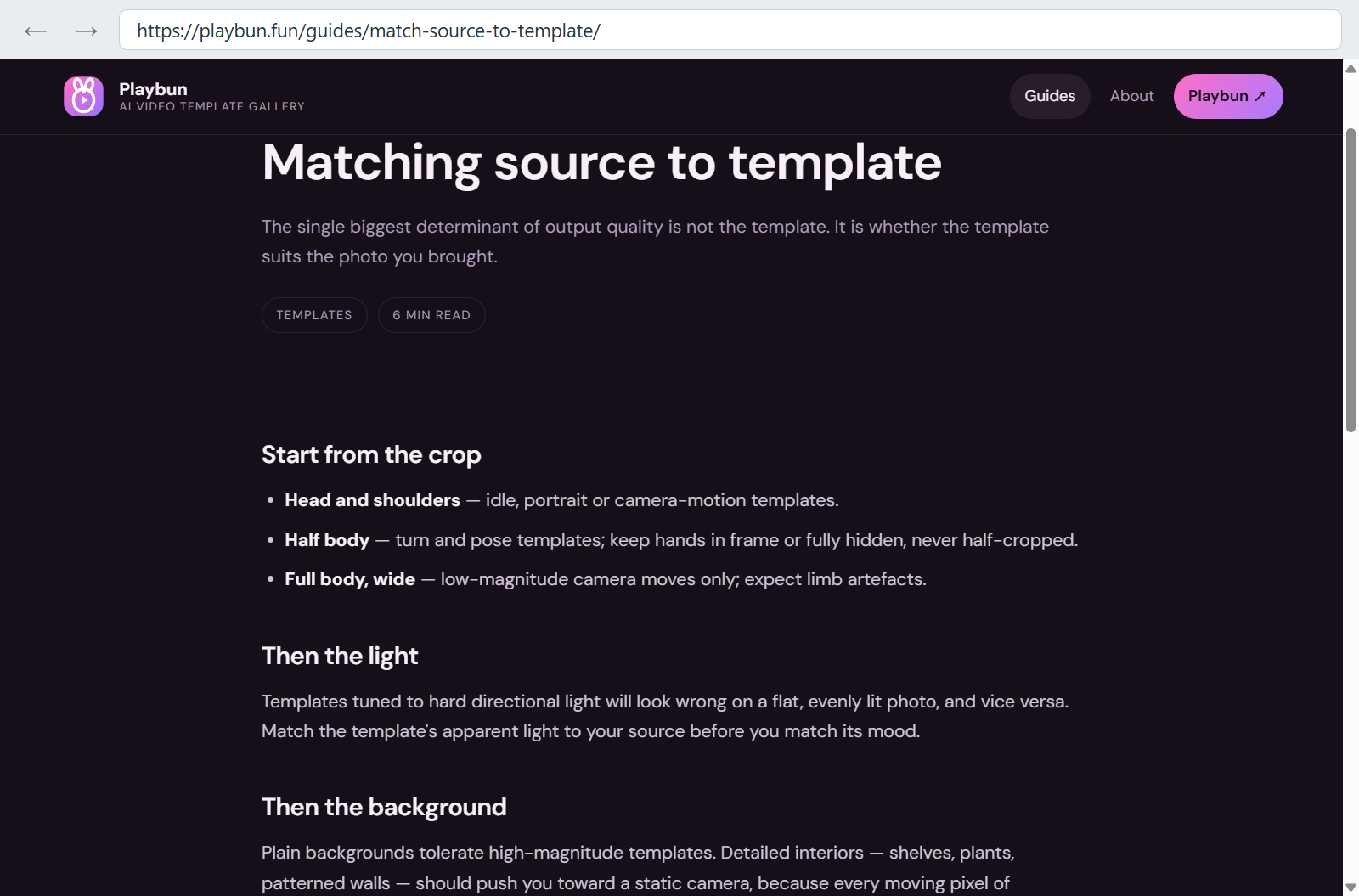
Playbun recommends matching template movement to the source crop, with complete hand framing for half-body images and restrained camera movement for full-body shots.
Check pose and subject orientation
Compare your source with the preview’s first meaningful pose. Look at shoulder angle, head direction, arm position, weight distribution, and open space around the body.
A frontal source is not automatically suitable for a strong turn. Rotating the torso may require the system to construct the far side of the body, which the image never showed. A three-quarter source already supplies more information about depth and body contour, reducing the amount of geometry that must be invented.
Direction matters as much as pose. If the subject faces left and is already close to the left edge, a template that continues moving left has little frame space available. A right-facing source may also conflict with a preview built around a pronounced turn from the opposite orientation. The issue is not that one direction is inherently better; the starting pose must leave a plausible route toward the template’s later positions.
Pause the preview at its largest movement and ask whether your image contains the surfaces visible at that moment. A profile becoming a front view, or a frontal torso turning toward its back, creates a larger information gap than a slight movement toward an angle already visible in the source.
Inspect light, hair, clothing, and background edges
Hair and clothing can turn an otherwise sensible match into a fragile one. Long hair crossing a shoulder may merge boundaries that need to separate during a turn. A loose sleeve hiding an elbow can look natural in a still image but become unstable when the arm moves. Higher-motion templates benefit from clean silhouettes and clearly separated body edges.
Match lighting before mood. A preview with hard light from one side implies highlights and shadows that must change during movement. A flat-lit source provides little evidence for that pattern, while illumination coming from the opposite direction can make facial shading inconsistent during a rotation. Compare the direction and hardness of the light, not merely its color.
Background complexity deserves the same attention. Plain or softly blurred settings contain fewer edges to reconstruct. Shelves, railings, patterned walls, and clusters of small lights introduce lines that can shift or wobble during camera movement. For a detailed interior, a locked camera with low-magnitude subject action is generally a better pairing than an orbit or lateral pan.
Use the controls and prompt to support the match
Some image-to-video interfaces expose controls that materially affect template compatibility. Adobe’s documented workflow, for example, includes first and last keyframes, aspect-ratio cropping, camera-motion presets, result review, and settings adjustment. That does not mean every external generator linked from Playbun offers the same options. Inspect the destination interface before committing credits.
Pay particular attention to the final aspect-ratio crop. Converting a landscape source to a vertical frame may cut off a hand or remove the space into which the subject needs to turn. If the service supports a final keyframe, check whether the transition between the two images demands a plausible movement rather than a complete reconstruction of pose, background, and lighting.
If the external generator accepts a motion prompt, keep it focused on movement the selected template can support. Put the primary subject action first, camera behavior second, and environmental movement last:
The subject makes a small head turn toward the camera while maintaining the starting pose. The camera remains locked. Hair movement is minimal, and the background stays still.
That brief reinforces a subtle portrait template. Adding an orbit, dramatic pose change, flowing fabric, shifting illumination, and background movement would introduce several competing demands.
Before uploading, also verify the external service’s current credit charge, accepted content, upload handling, retention or deletion options, and applicable rules. These details belong to the destination generator and may change independently of Playbun’s editorial pages.
Review the clip and change one variable per retry
Watch the result at normal speed before inspecting individual frames. Follow the face, hands, body outline, clothing edges, and places where the subject intersects with the background. A flaw visible only on one paused transition frame may matter less than continuous facial drift or a hand changing shape during ordinary playback.
Classify the failure before retrying:
- Facial or identity drift: reduce the motion or choose a sharper, more open portrait.
- Broken hands or joints: revise the crop or select motion that does not depend on those parts.
- Distortion during a turn: use a source already oriented closer to the target pose.
- Unstable background: choose a locked camera, simplify the setting, or tighten the crop.
- Lighting flicker: match the source more closely to the preview’s light direction.
- Unexpected framing: correct the aspect ratio or leave more movement space.
Change only one variable on each retry. Altering the source, crop, template, prompt, and camera setting together prevents you from learning which correction worked. Playbun’s matching guide offers a practical stopping rule: if the same artifact recurs across three attempts, treat the source and template as mismatched. Move to a lower-motion family or choose an image with a more compatible crop and orientation.
The final decision can be brief: Is the crop complete? Does the subject face a compatible direction? Is there room for the motion? Do the lighting and background resemble the conditions in the preview? Would the template need to invent unseen anatomy or surfaces? If one answer reveals a clear conflict, change the source or template before generating. That is Playbun’s strongest function: turning an attractive preview into a reasoned Adults 18+ AI video workflow.